> ## Documentation Index
> Fetch the complete documentation index at: https://docs.heliumid.io/llms.txt
> Use this file to discover all available pages before exploring further.
# Introduction
Learn how to integrate Helium Id to verify your end-users.
In order to use Helium Id to verify your end-users, you need to complete the following core steps:
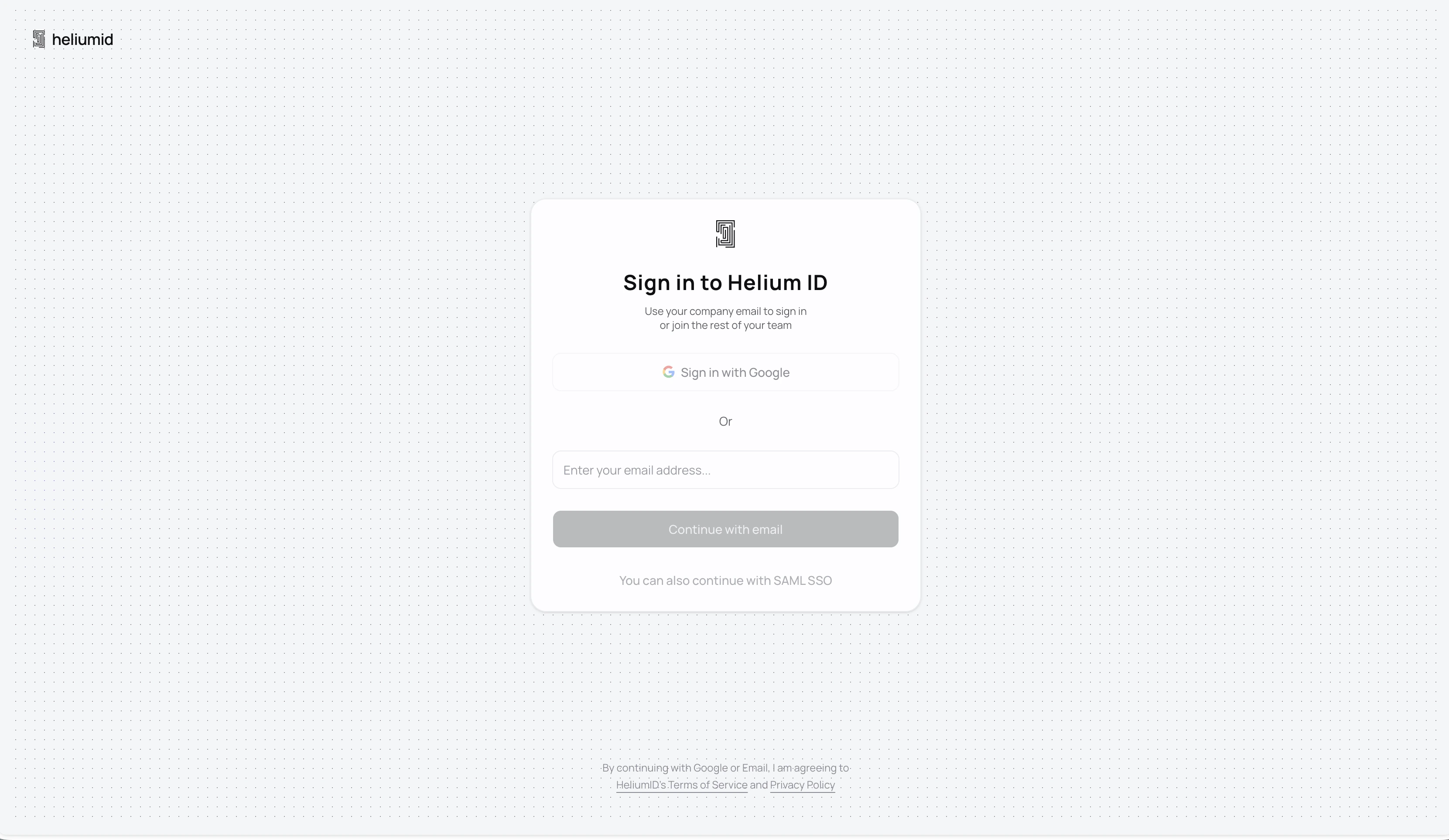
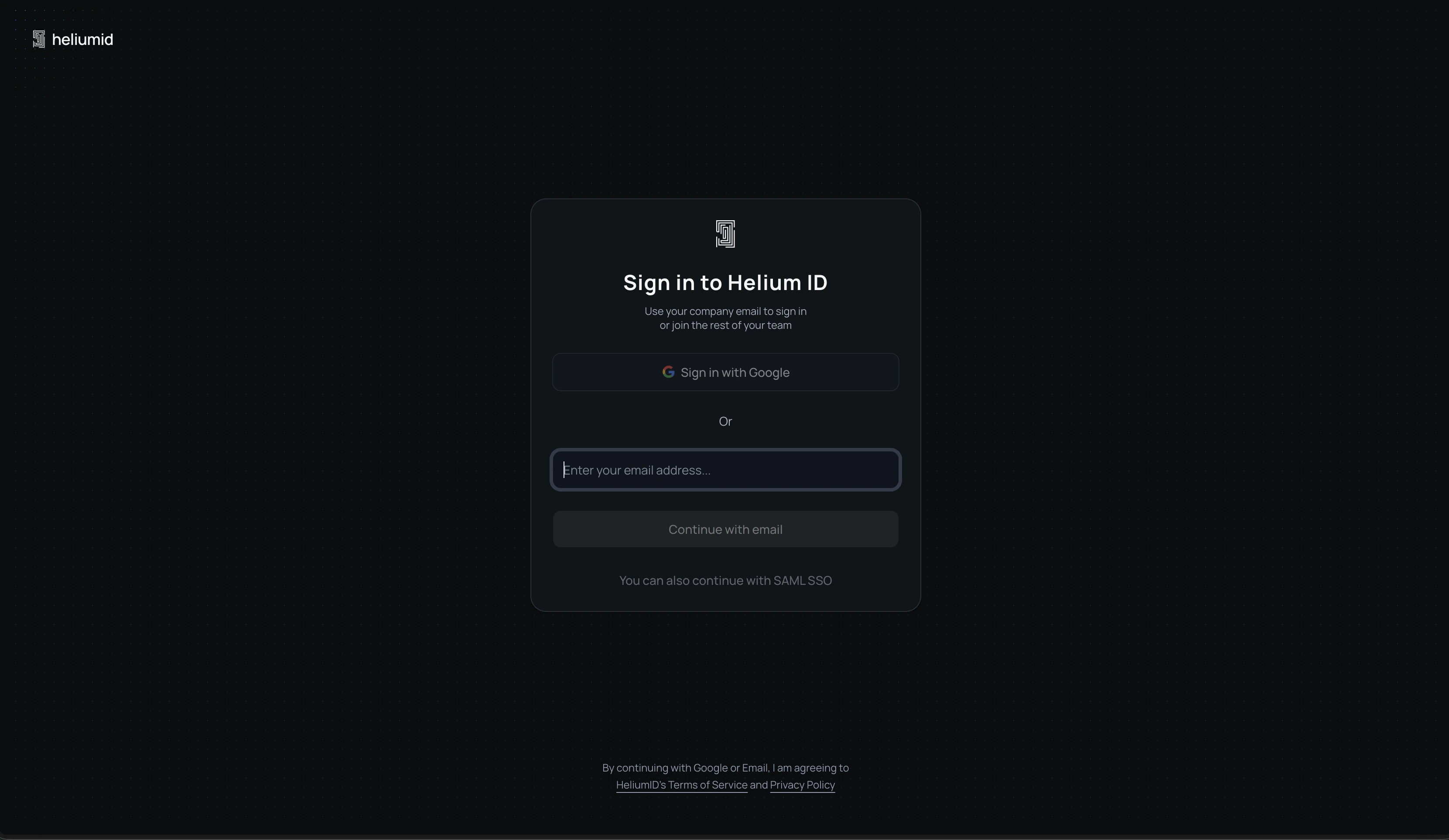
Head over to [Helium Id](https://admin.heliumid.io/auth/access) and sign in
to your account. If you don't have an existing account, we'll create one for
you.
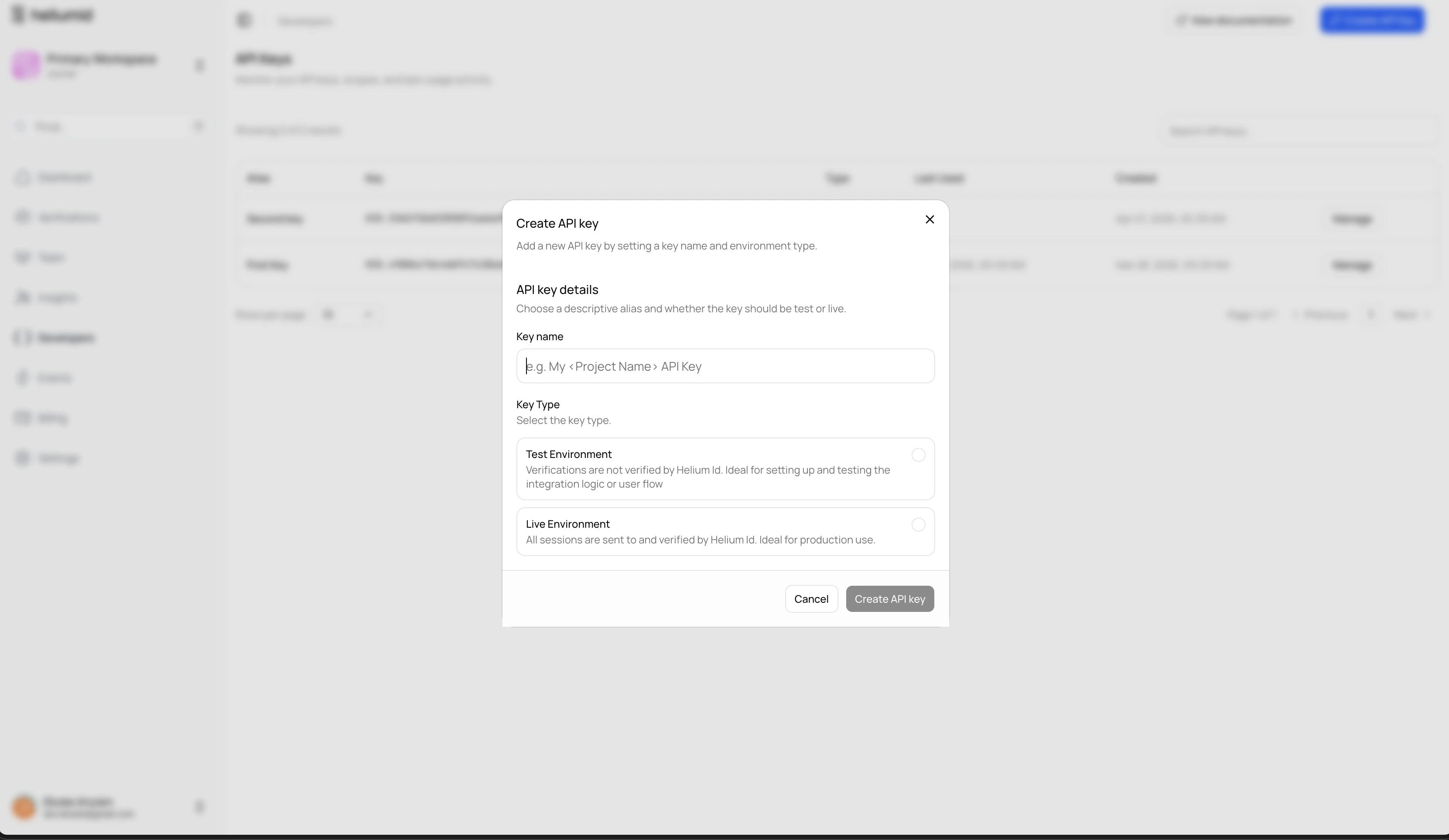
 Once logged in, go to the [Developers](https://admin.heliumid.io/developers)
page and create an API key
Once logged in, go to the [Developers](https://admin.heliumid.io/developers)
page and create an API key
 Decide if you want to use a client-side SDK to pass end-user data, or do it
securely via our API — and implement the solution.
Create a new verification session for your end-user.
If you've set up webhooks on your developer API key, you'll receive the
webhook with the session result and verified data.
If needed, manually review the session in the Customer Portal.
### Quick Introductions
This documentation will give you quick intros into the most important concepts and tools:
Learn how to sign up, log in, and manage your account.
Create, find, and test different integration methods.
Learn how to create sessions and understand verification decisions.
Use our SDKs to easily pass end-user data.
Explore our Public API collection and make API calls directly.
Set up and receive webhooks for session results.
### Additional Resources
See Helium Id in action with our interactive demos.
Check which browsers and platforms we support.
Decide if you want to use a client-side SDK to pass end-user data, or do it
securely via our API — and implement the solution.
Create a new verification session for your end-user.
If you've set up webhooks on your developer API key, you'll receive the
webhook with the session result and verified data.
If needed, manually review the session in the Customer Portal.
### Quick Introductions
This documentation will give you quick intros into the most important concepts and tools:
Learn how to sign up, log in, and manage your account.
Create, find, and test different integration methods.
Learn how to create sessions and understand verification decisions.
Use our SDKs to easily pass end-user data.
Explore our Public API collection and make API calls directly.
Set up and receive webhooks for session results.
### Additional Resources
See Helium Id in action with our interactive demos.
Check which browsers and platforms we support.